To add a customer defined Input, all other decoder windows must be closed. The number of custom inputs is limited to 16.
Streaming and custom inputs belong together. A new custom input has to be defined before streaming can be used to acquire a specific data stream for decoding. At the moment, streaming can be defined for TCP/IP data, sound card devices (real or virtual) and for .WAV-files. If a custom input is selected as the input source, the data stream is read from the specific input.
For defining, editing and deleting a custom input, the dialog Custom Inputs is used. The properties of the custom input are stored in a XML file. The defined custom inputs are selectable like any other input sources.
In the screen shot below two user-defined inputs appear.
Ø In the left table, the user defined custom inputs are listed.
Ø In the right table, the parameters of the currently selected custom input are displayed. The Parameter column contains the names of the parameters, and the Value column shows the related parameter values.
Ø The Add button is used to create a new custom input. The Apply button saves the parameter settings of a newly created or an edited custom input. Pressing the Delete button removes a selected custom input.
The following picture shows the Custom Inputs dialog after pressing the Add button.

The Input Name can be edited in the right table by typing a new name into the Value field if desired.
Next, the device type has to be specified. File, Network or Soundcard (for W-PCI, W-PCIe, W74PC and W61PC hardware decoders) can be chosen from the list box that appears by clicking on the Choose a device type.

Add a new WAV-File Custom Input
Select the Configuration | Custom Inputs... menu entry to open the configuration dialog for the custom inputs.
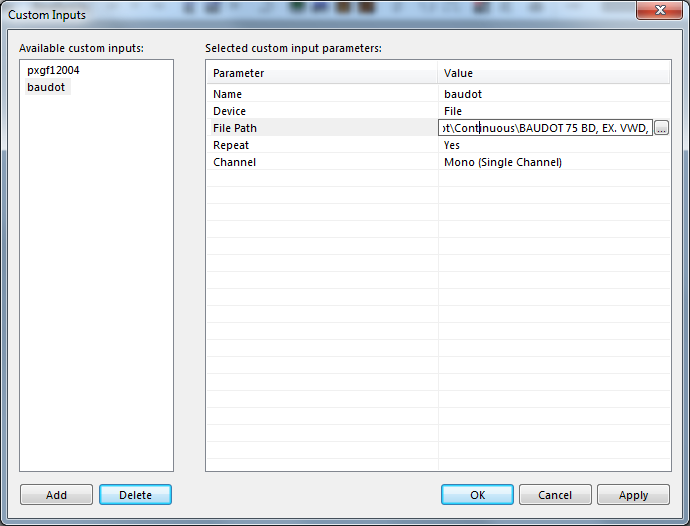
To use a WAV-File as signal input source, the following parameters have to be set via the Custom Inputs dialog:
|
File Input Parameter |
Value |
|
Input Name |
The name of the custom input |
|
Device |
Select File in the list |
|
File Path |
The path to the specific WAV-file has to be specified |
|
Channel |
In the list box the channel(s) to be used are displayed: Mono, Left, Right, Left + Right (PCM) and Left & Right (IQ) If you start by entering the filename, then the file is analyzed and the correct settings are automatically selected |
|
Play Continuous |
Indicates if the files are played in repeat mode. Select On to switch on the repeat mode or Off to switch off the repeat mode |
The file can be selected from any available directory on
the LAN. The specified WAV-file is copied to the Data-Input
directory (on the computer hosting the decoder) and stored under the name
<SerialNumberOfW[xx]Card>_<InputName>.wav.
Note: The WAV-file is reloaded each time the Apply button is pressed. The Apply button must also be used to save the configuration of a new custom input. Pressing the OK button only closes the dialog. The XML file CustomInputs.xml, located in the Config directory, is updated by pressing the Apply button.
Add a New Sound Card (Real or Virtual) Custom Input
Select the Configuration | Custom Inputs... menu entry to open the configuration dialog for the custom inputs.
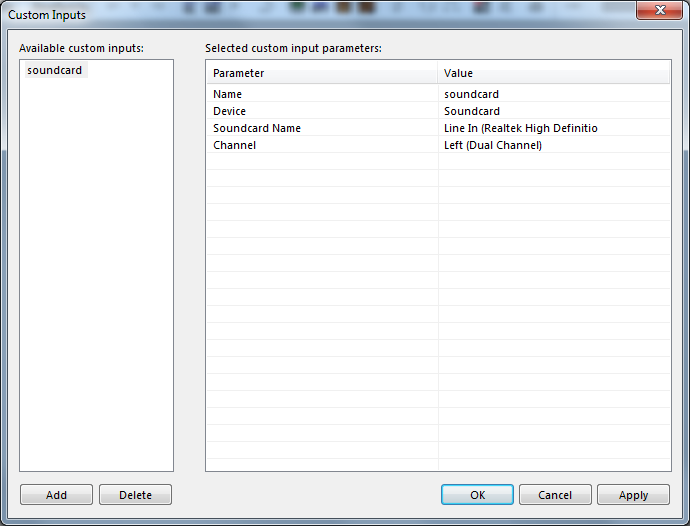
To use a sound card as the signal input source, the following parameters have to be set via the Custom Inputs dialog:
|
Soundcard Input Parameter |
Value |
|
Input Name |
The name of the custom input |
|
Device |
Select Soundcard in the list |
|
Name |
The names of all soundcards installed on the computer are displayed in a list box. Select one soundcard |
|
Channel |
In the list box the channel(s) to be used are displayed: Mono, Left, Right, Left + Right (PCM) or Left & Right (IQ) |
|
Sampling Rate [Hz] |
The sampling rate is fixed at 48 kHz |
Note: If the GUI is running in remote mode, the names of the sound cards installed on the remote computer which hosts the WAVECOM decoder are listed.
Add a new TCP/IP Custom Input
Select the Configuration | Custom Inputs... menu entry to open the configuration dialog for the custom inputs.
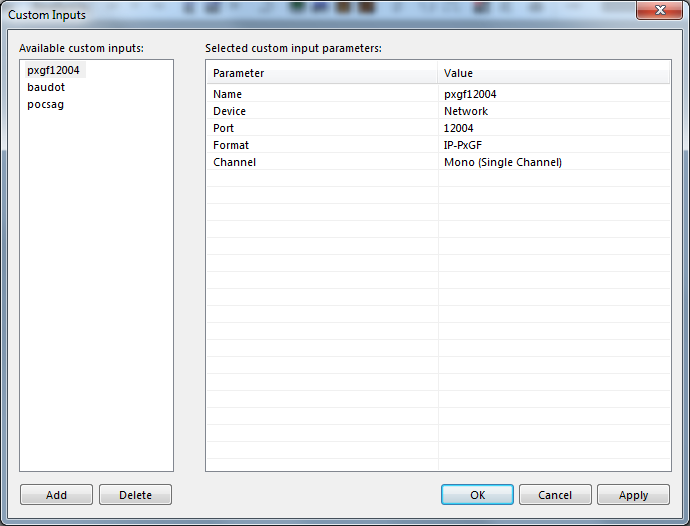
To use a TCP/IP stream as signal input source, the following parameters have to be set via the Custom Inputs dialog:
|
Input Parameter |
Value |
|
Input Name |
The name of the custom input |
|
Device |
Select Network in the list |
|
Port number |
Enter the a port number. The data source must be configured with the same port number |
|
Format |
IP-CONF, IP-PXGF or VITA-49 (for more information, see WAVECOM Data Formats) |
|
Sampling Rate (Hz) |
The sampling rate used by the data source |
|
Number of channels |
Number of channels |
|
Channel |
In the list box the channel(s) to be used are displayed: Mono, Left, Right, Left + Right (PCM) and Left & Right (IQ) |
Add a new VITA-49 Custom Input
VITA-49 is a standardized stream format which is specified in ANSI/VITA-49.
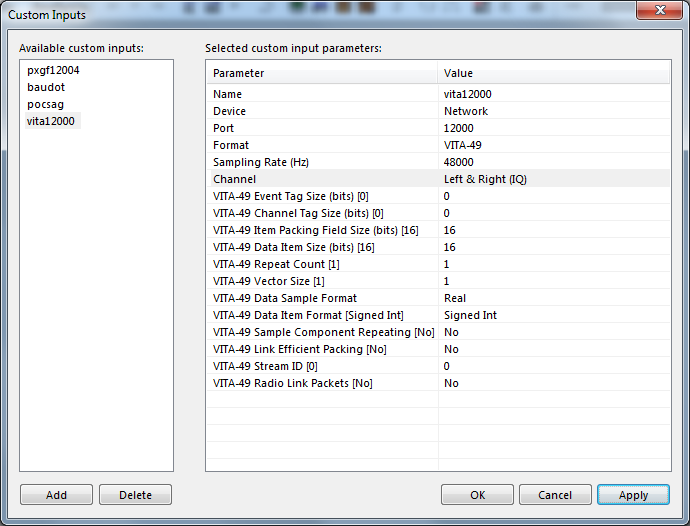
To use a TCP/IP stream with VITA-49 format as signal input source, the following parameters have to be set via the Custom Inputs dialog:
|
Input Parameter |
Value |
|
Input Name |
The name of the custom input. |
|
Device |
Select Network in the list. |
|
Port number |
Enter the a port number. The data source must be configured with the same port number. |
|
Format |
Select VITA-49. |
|
Sampling Rate (Hz) |
The sampling rate used by the data source |
|
Channel |
In the list box the channel(s) to be used are displayed: Mono, Left, Right, Left + Right (PCM) and Left & Right (IQ). |
|
VITA-49 Event Tag Size |
The size (in bits) of the VITA-49 event tag. This parameter is ignored by W-CODE. |
|
VITA-49 Channel Tag Size |
The size (in bits) of the VITA-49 channel tag. This parameter is ignored by W-CODE. |
|
VITA-49 Item Packing Field Size |
The size of the item packing field. This field contains the event tag, the channel tag and the data item, so the size must be at least (Event Tag Size) + (Channel Tag Size) + (Data Item Size). |
|
VITA-49 Data Item Size |
The size of a data item. The data item contains the actual sample data. |
|
VITA-49 Repeat Count |
The repeat count. It is not supported by W-CODE and should be set to 1 as default. |
|
VITA-49 Vector Size |
The vector size. W-CODE does not support vectors, so this value should be set to 1 as default. |
|
VITA-49 Data Sample Format |
VITA-49 supports the following data sample formats: •Real: Real samples. Each sample consists of 1 data item. •Complex Cartesian: Each sample consists of 2 data items, which are the real and imaginary parts of a complex number. •Complex Polar: Each sample consists of 2 data items, which are the vector length and the angle of a complex number. |
|
VITA-49 Data Sample Format |
The format of a data item. VITA-49 supports the following data item formats: •Signed Integer. •Signed VRT (1-6 bits). •Unsigned Integer. •Unsigned VRT (1-6 bits). •IEEE 754 Float (32 bits). •IEEE 754 Double (64 bits). VRT is a special floating-poiint format of VITA-49, using 1 to 6 bits for the exponent and the rest for the mantissa. Using VRT instead of one of the IEEE formats can reduce the amount of TCP/IP data stream, and save streaming bandwidth. |
|
VITA-49 Sample Component Repeating |
Sample Component Repeating. Not supported by W-CODE. |
|
VITA-49 Link Efficient Packing |
This flag decides if data items should be packed to reduce the data size in some cases. |
|
VITA-49 Stream ID |
The VITA-49 stream id. Stream IDs are accepted but ignored. No filtering is done. |
|
VITA-49 Radio Link Packets |
Enables the use of VITA-49.1 packets. Those packets, in addition to normal packets, contain a unique identifier at the beginning and also support a CRC. This makes a VITA-49 link much more robust. |
Note: The VITA-49 parameters are default values. If a matching context packet is received that contains a data stream format description, those values are overwritten by that context packet.
Edit a Custom Input
Select the custom input from the input list on the left in the Custom Inputs dialog. For instance, select the baudot entry, which is a file input.
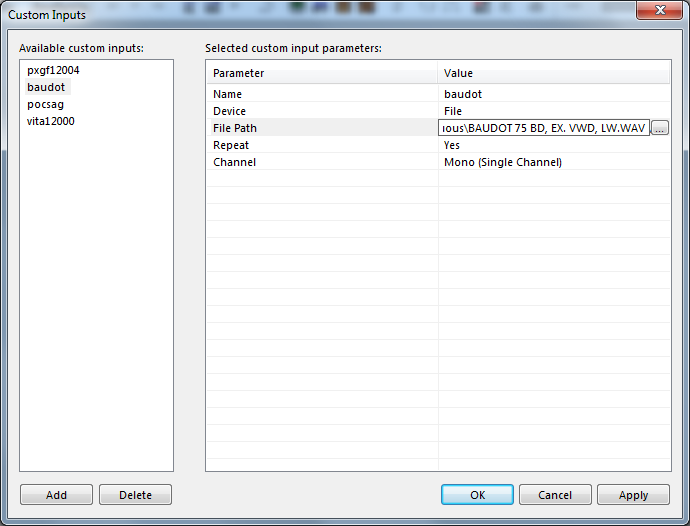
Now it is possible to modify the parameter values in the parameter table on the right.
For instance, the Input Name or the Channel parameter value can be modified.
Even the Device value can be changed from File to Network. By changing the device the new device-related parameters will appear in the parameter list and the parameters of the old device will disappear.
By pressing the Apply button, the changes will be saved for the specific custom input.
The XML file CustomInputs.xml, located in the Config directory, is updated by pressing the Apply button.
Important: After modifying custom input parameters, press the Apply button; otherwise the changes will be lost.
Delete a Custom Input
Select the custom input to delete in the Input list (left table) and press the Delete button. This will remove the custom input from the XML file CustomInputs.xml, located in the Config directory.
Selecting a Custom Input
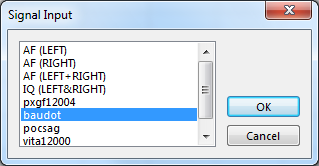
The user defined custom inputs can be selected via the Signal Input dialog. The dialog can be opened via the Demodulator menu’s entry Input... or by double-clicking the Input status bar field at the right bottom of the GUI.
The screen shot below shows the Signal Input dialog including four user defined custom inputs at the end of the list.