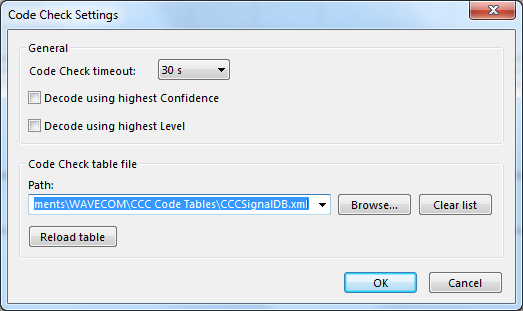
Code Check Timeout
This option specifies the maximum allowable time interval between two successful synchronization attempts performed by a code check process. If the specified time interval is exceeded, the code check process will be interrupted. Available intervals are 15, 30, 45, and 60 seconds.
Decode Using the Highest Confidence
If checked and if decoding is part of the selected CCC process (P4 and P5), decoding is performed for the signal with the highest confidence as determined by the classifier.
Decode Using the Highest Level
If checked and if decoding is part of the selected CCC process (P4 and P5), decoding is performed for the signal with the highest signal level determined by the classifier.
Code Check Table File
Select the XML table to use for the table check or to replace the current file.
A history of previously used XML files is displayed in a drop-down list when clicking on the arrow. Pressing the Clear List button, the history list will be reset. A file browser appears when clicking on the Browse… button.
If the selected file does not exist, a warning is displayed.
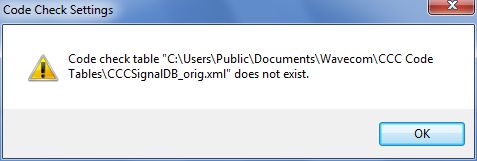
If the CCC is started without an XML table, a dialog which prompts the user to select an XML table file appears.
Reload Table
Press this button to reload the current XML table.
The reload feature should be used to ensure that modifications of the currently selected file are applied – for instance if CCC Editor has made changes.
Use Demodulator | Offset or double-click in the Offset field in the lower status bar for selecting an appropriate translation frequency. When the CCC is launched from the VHF/UHF-DIR menu, the translation frequency corresponds to the central frequency of the displayed frequency range in the sonagram and FFT windows. When the CCC is launched from the VHF/UHF-SUB menu, the translation frequency corresponds to the lowest frequency of the displayed frequency range in the sonagram and FFT windows.
To select the classification bandwidth, double-click the Bandwidth field in the lower status bar or open a context menu by right-clicking in the FFT window. The Average Factor, Window Type, Period and Peak Hold options in the list are identical to the corresponding real-time FFT options (see the section on Real-time FFT).